
Weather, routes,
the whole picture.
A visual field guide to Puffin WX: the map, airport reports, forecast layers, FAA route references, widgets, Apple Watch, and the weather artwork behind them.
Start exploring ↗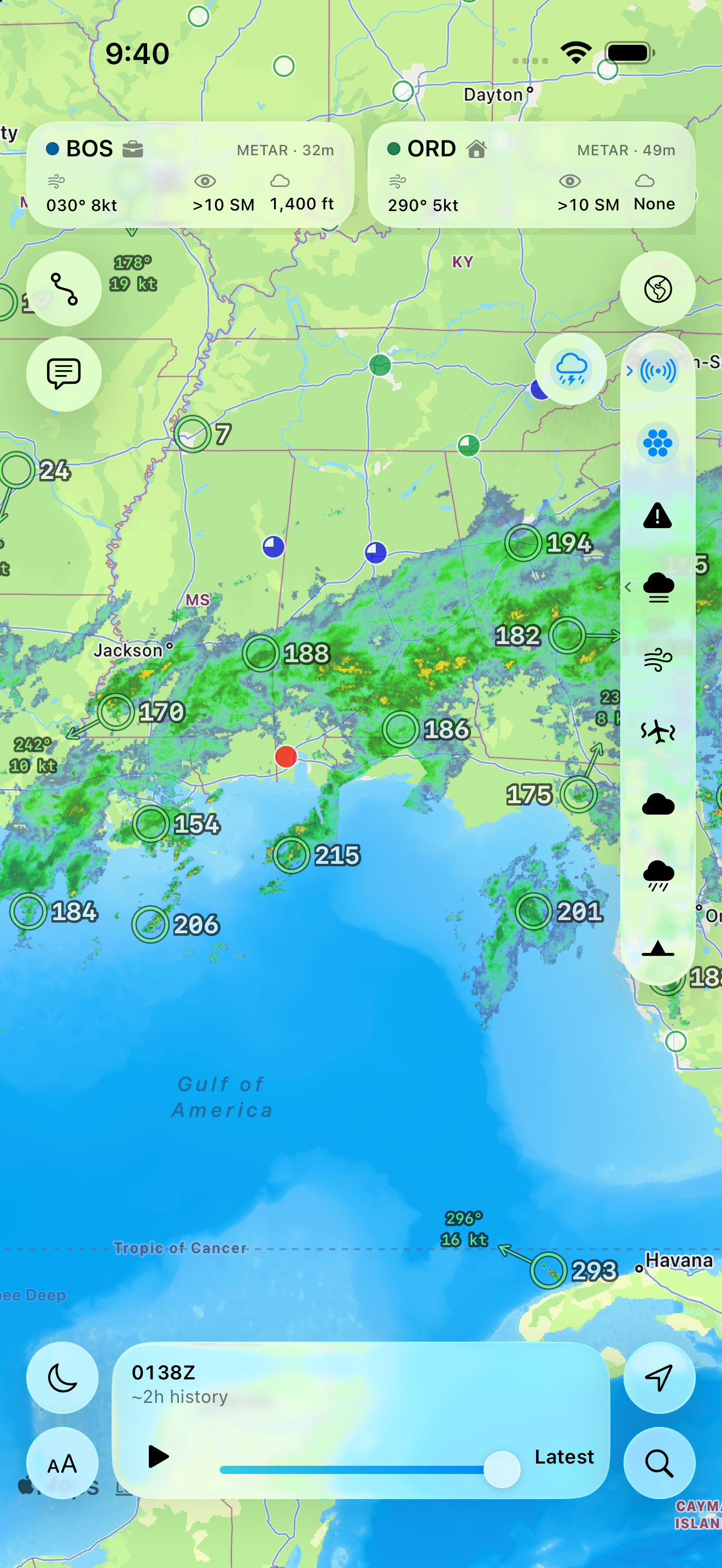
Four moves to get oriented.
Each weather product keeps its own source, time, and coverage. Learn the layout first, then explore the deeper chapters.
This guide is not a live weather display or an operational briefing. Screenshots retain the conditions and source times from their capture. Availability varies by airport and provider.
Find your way through Puffin WX.
Use the chapters below to learn a feature, what to tap, and how to read its source and time. The captures are examples, not current operational weather.
The map
A single canvas for observations, weather layers, and time.
The map is home
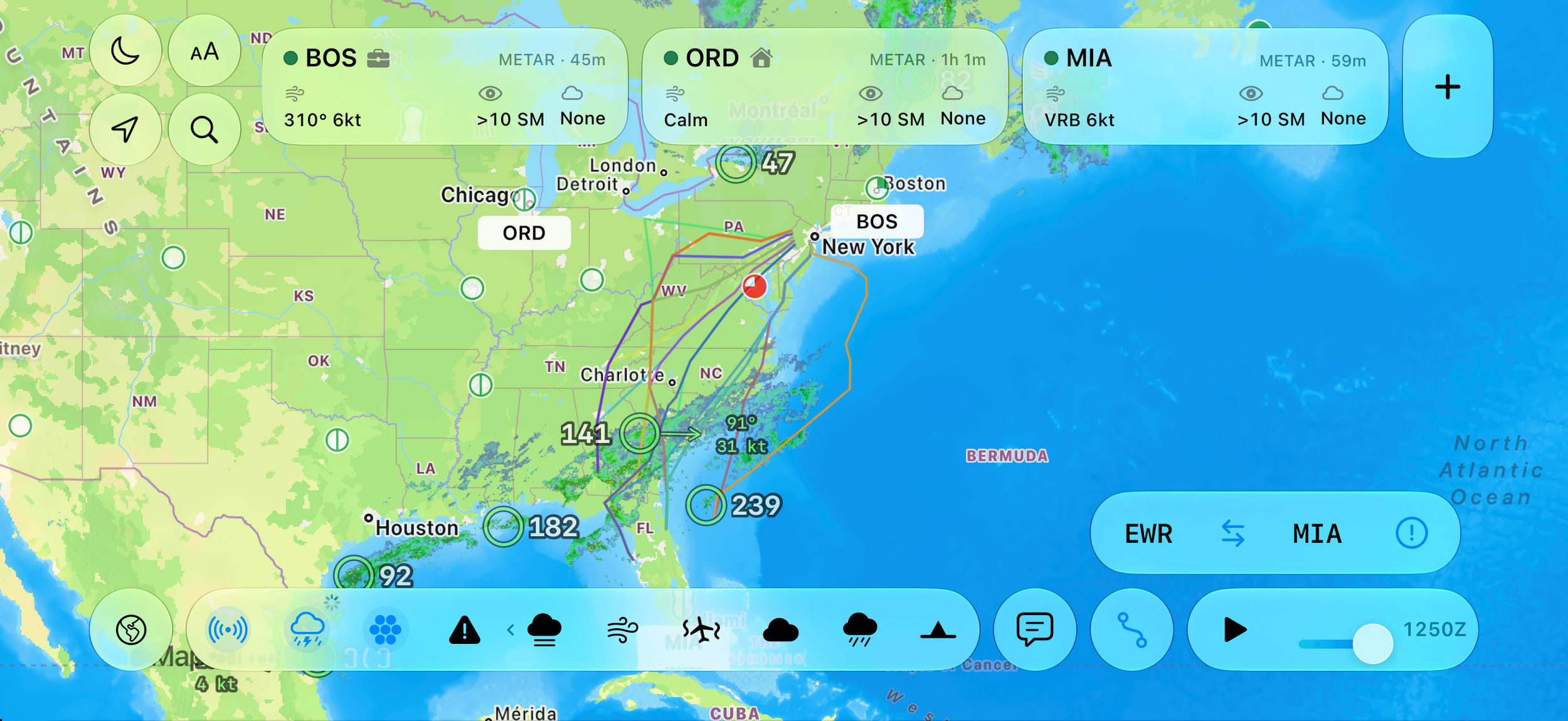
Airport cards, weather controls, routes, discussions, location, and search float over an interactive map. Portrait and landscape keep the same tools but use different space.
How to use it- Drag and pinch the map to inspect an area; use the location control to recenter when location access is available.
- Use the moon and aA controls for appearance and text size. Tap the globe to switch Normal and Satellite map appearance; the weather rail stays on the map and scrolls when space is tight.
- Rotate to landscape for a wider map. The top-left controls become a compact two-by-two group, favorite cards keep their reading width, and the weather/timeline controls move to the lower edge.
- Open airport search in landscape to use the compact side keyboard; choose Full keyboard if you need the system keyboard.
Read the screen. The airport cards use METAR age. The radar scrubber is a time control; detailed report pages remain in the portrait airport sheet.
Radar and storm cells
The radar layer displays NOAA MRMS imagery with source-frame times, playback, and a Latest position. A separate storm-cell control adds current cell details when verified attributes are available.
How to use it- Tap Radar in the weather rail. Use the compact scrubber to inspect advertised historical frames or press Play.
- Tap the adjacent storm-cell control to show or hide current cells. Tap a cell for its identifier, motion and top information when the source supplied them.
- Touch and hold Radar to open the legend, status, time range, opacity, and source explanation. Layer opacity and chosen map settings are saved for later launches.
Read the screen. Historical radar and current storm cells are kept separate. A transparent radar pixel or missing tile does not establish clear weather; the app labels source or coverage failures.
Flight rules and advisories
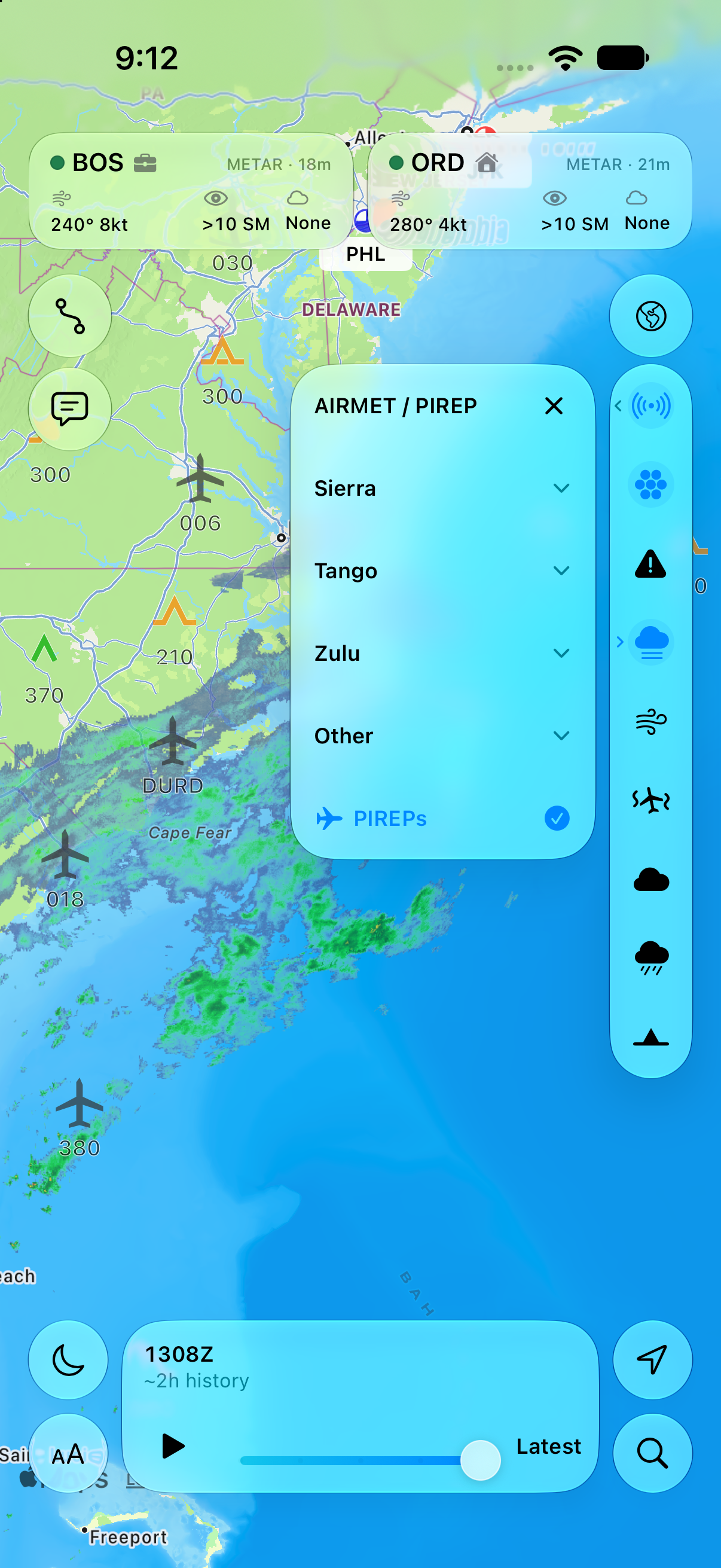
Flight rules mark station observations. SIGMETs, G-AIRMETs, and PIREPs keep their own published shapes, reports, and valid times.
How to use it- Tap Flight rules to compare airport categories on the map.
- Use the SIGMET and AIRMET/PIREP controls for the advisory overlay you want; the nested selector separates advisory groups and PIREPs.
- Tap an advisory area or report symbol. When reports overlap, choose from the complete list rather than assuming the first one is the only one.
- Touch and hold a layer icon for its legend and Info center.
Read the screen. A G-AIRMET forecast valid time is not a current METAR. PIREPs are individual reports, and an empty map may mean no matching data or no coverage.
Forecast layers in space and time
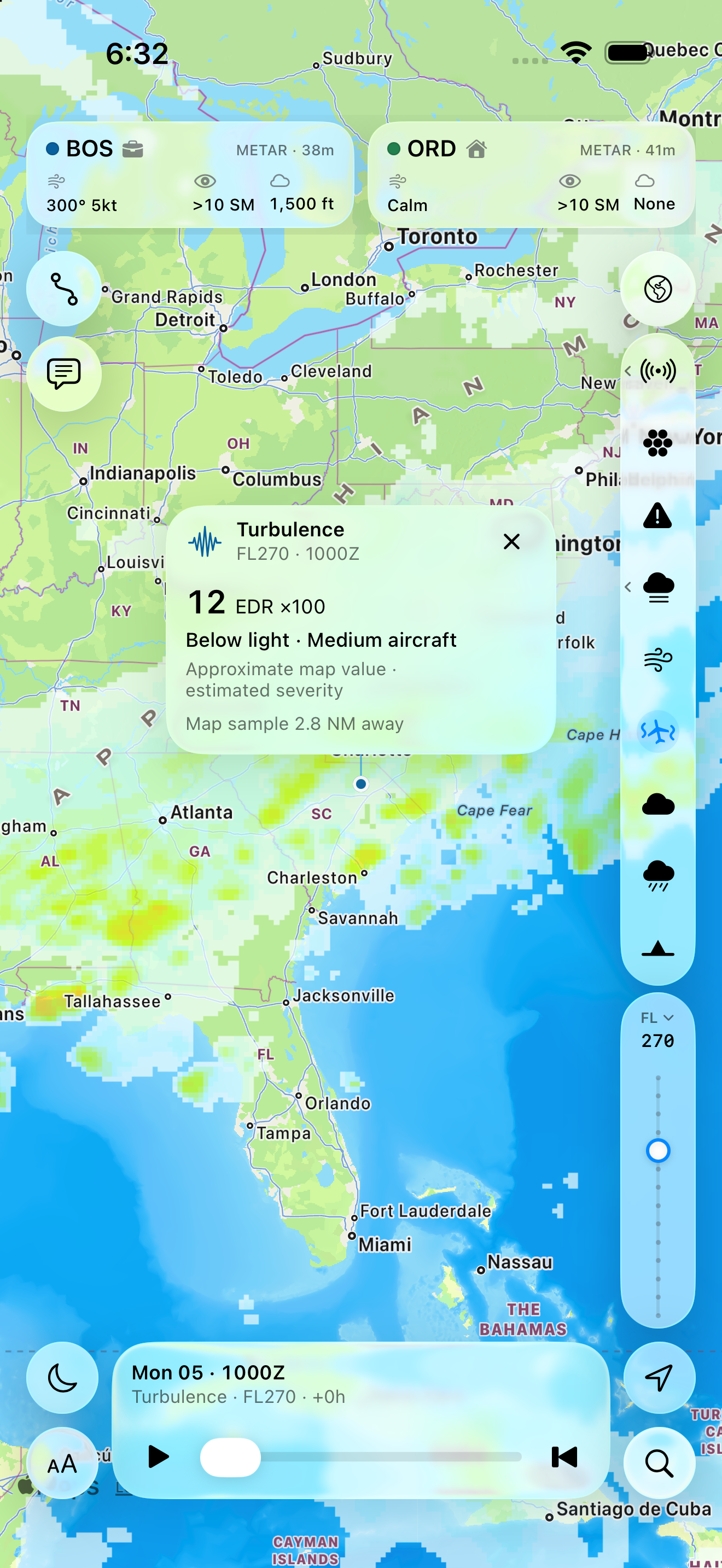
Graphical AWC forecasts use a shared timeline. Winds, turbulence, and clouds have source-defined altitude choices; precipitation is a surface product.
How to use it- Choose one gridded forecast layer from the rail. Its timeline shows the available forecast leads.
- For Winds, Turbulence, or Clouds, adjust the altitude control. In Clouds details, choose coverage, bases, or tops; in Turbulence details, choose the aircraft-weight class used for severity guidance.
- Tap an exposed map point to inspect the selected time and altitude. The point card identifies its sampled location and the source value when available.
- Touch and hold the layer icon to see the live legend, source cycle, valid time, opacity, and interpretation.
Read the screen. Only one gridded forecast image is selected at a time. Turbulence map-point values are approximate palette readings, not a precise raw-model query; precipitation categories are not numeric amounts.
Surface analysis and winds aloft
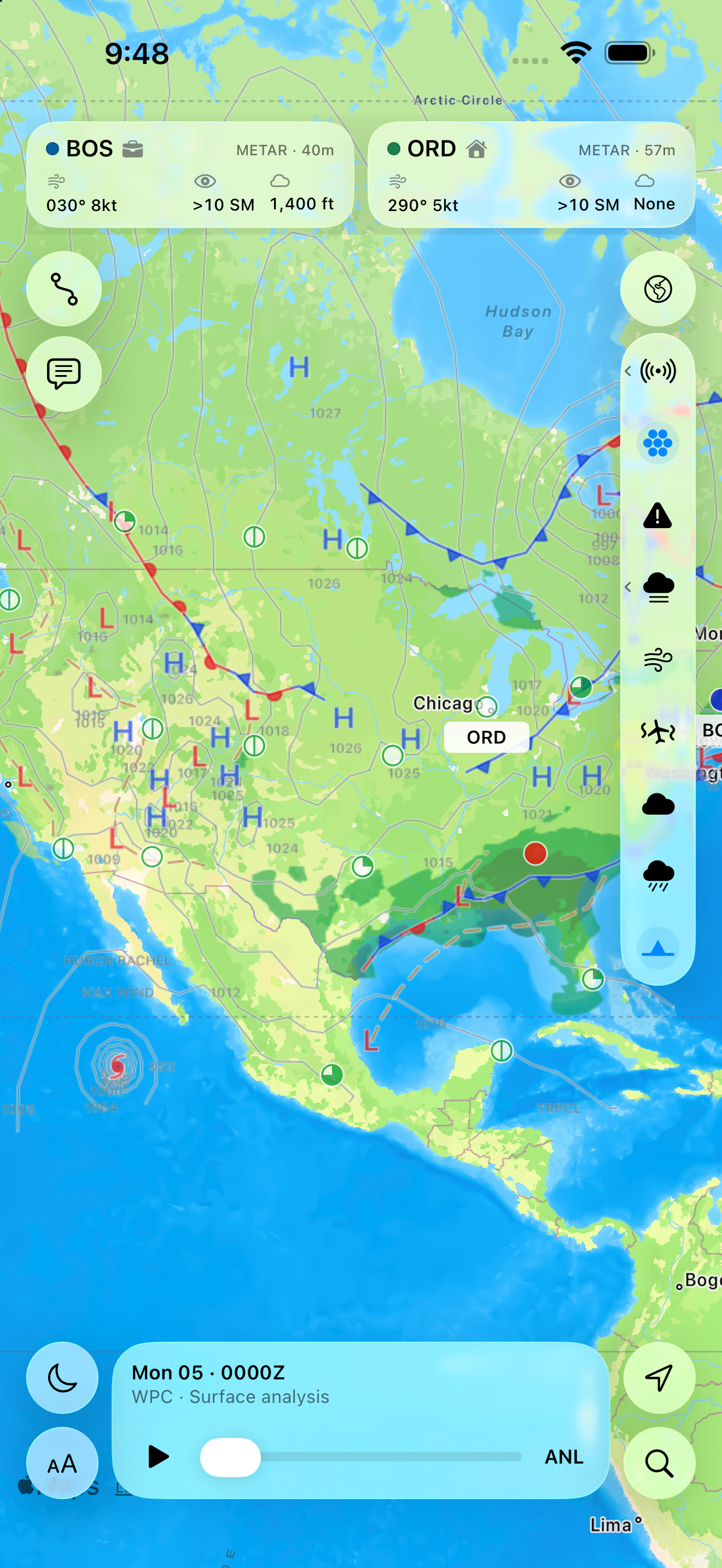
Surface analysis shows fronts and pressure over the forecast timeline. The Winds details page also contains a native winds/temperatures aloft station table and the original bulletin.
How to use it- Tap Surface analysis, then move its timeline to a published valid time.
- Touch and hold the Surface analysis icon to read its specific legend and source status.
- Open Winds details for region, altitude band, and 6-, 12-, or 24-hour bulletin choices. Use Copy or Source when you need the original fixed-width product.
Read the screen. Surface analysis and the AWC precipitation forecast are different products. A future surface frame may show fronts while precipitation shading is unavailable.
Airports
Find a field, save it, and keep identity separate from reporting coverage.
Find any U.S. field
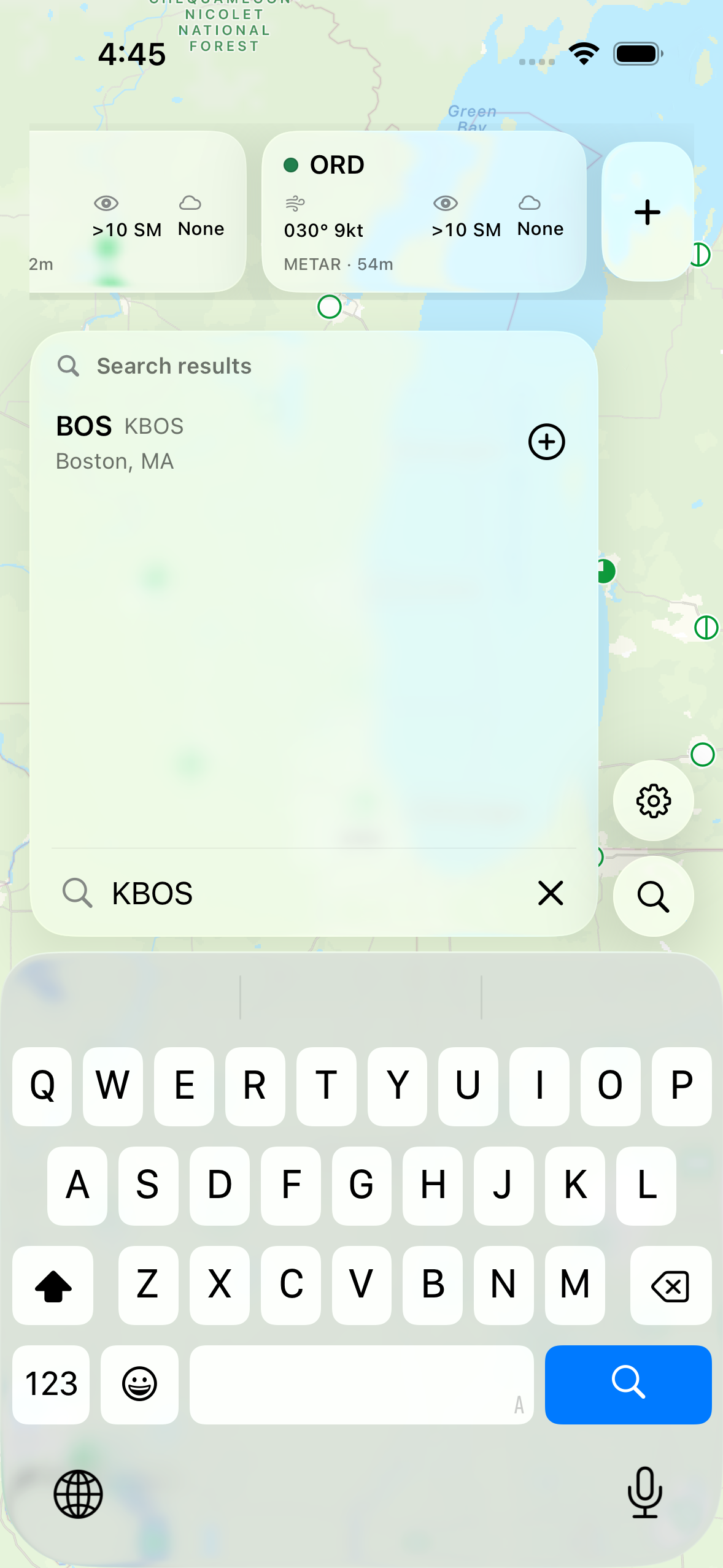
Search the FAA airport catalog by identifier, name, city, or state. It includes small airports and other operational landing facilities even when they have no METAR or TAF station.
How to use it- Tap Search on the map or the add-airport tile, then enter BOS or KBOS.
- Choose Boston Logan from the results to center its marker and open the airport page.
- If location access is allowed, nearby recommendations appear in Commercial, Regional, and Local groups; if it is denied, text search still works.
- Check the product-specific tabs. The catalog includes fields without a verified reporting station; those products say information unavailable while coordinate-based forecasts may still be present.
Read the screen. The catalog contains 18,969 operational U.S. records plus 33 retained international airports. Airport identity does not imply a weather station or every forecast product.

Build your airport row
Favorite airports stay in a scrollable row over the map. Tags can be combined; they are labels, not required Home/Base slots.
How to use it- Open an airport and tap its star to add it to favorites.
- Open the favorite’s menu and choose the tags editor. Add more than one of Home, Base, Work, or your own short custom tags, then Save.
- Touch and hold a favorite card, choose Organize airports, and drag the handles. The order saves automatically.
- Use the card menu to remove a favorite; fixed widget airport selections stay independent of this list.
Read the screen. Cards show actual METAR-derived values and observation age. If a report is stale or missing, its state stays visible rather than borrowing a nearby station.
Reports
Original weather text, careful decoding, and dated history.
METAR and airport status
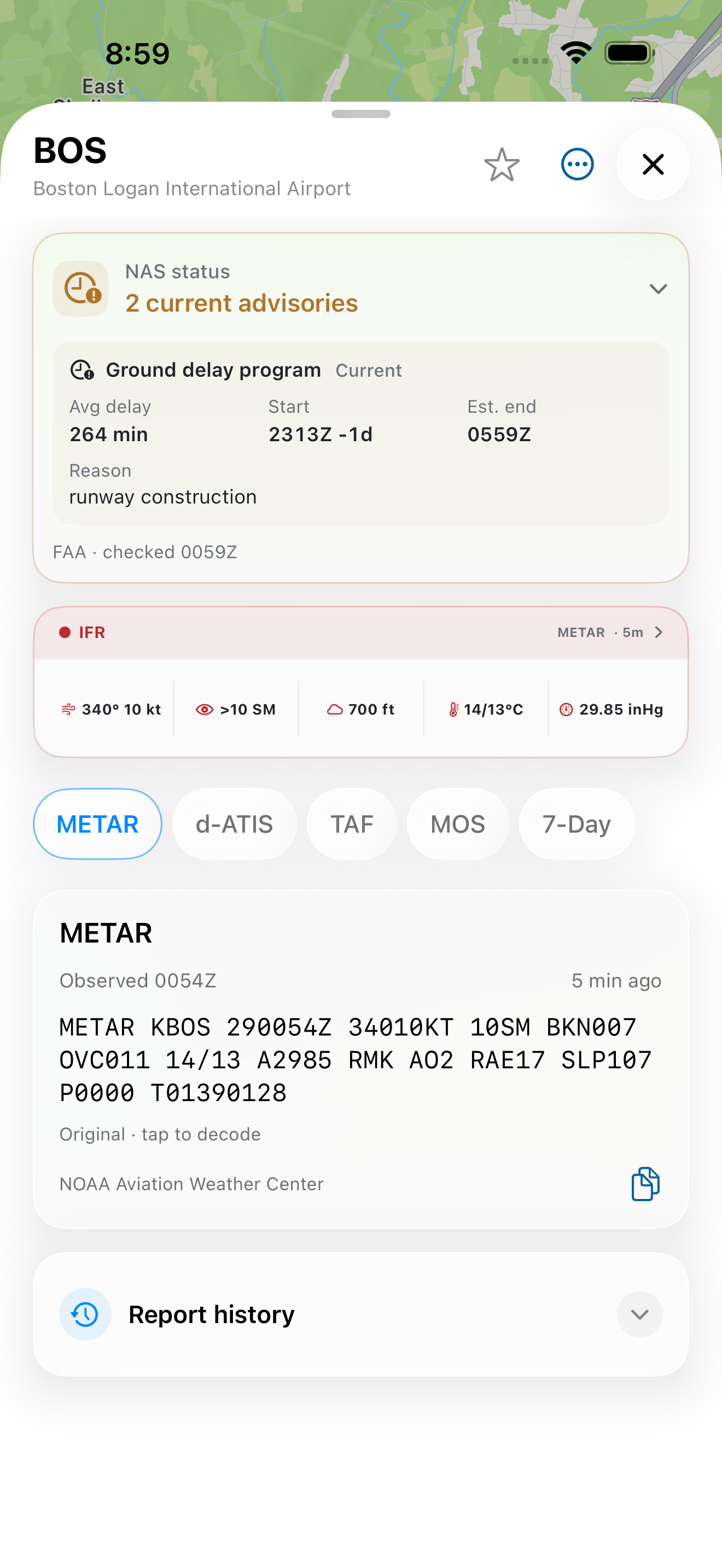
The airport page starts from the station’s actual METAR: flight category, wind, visibility, ceiling, temperature/dew point, and altimeter. FAA NAS events have their own status area.
How to use it- Open BOS from a favorite card or search result and select METAR.
- Read the observation time and source age before using any value. The BOS capture shows a published FAA NAS advisory; expand the status panel for its details.
- Tap the report text to switch between original and decoded presentation. The original report remains available for copying.
Read the screen. NAS events never change the METAR flight category. A missing observation stays unavailable and never becomes calm, VFR, or a model-derived reading.
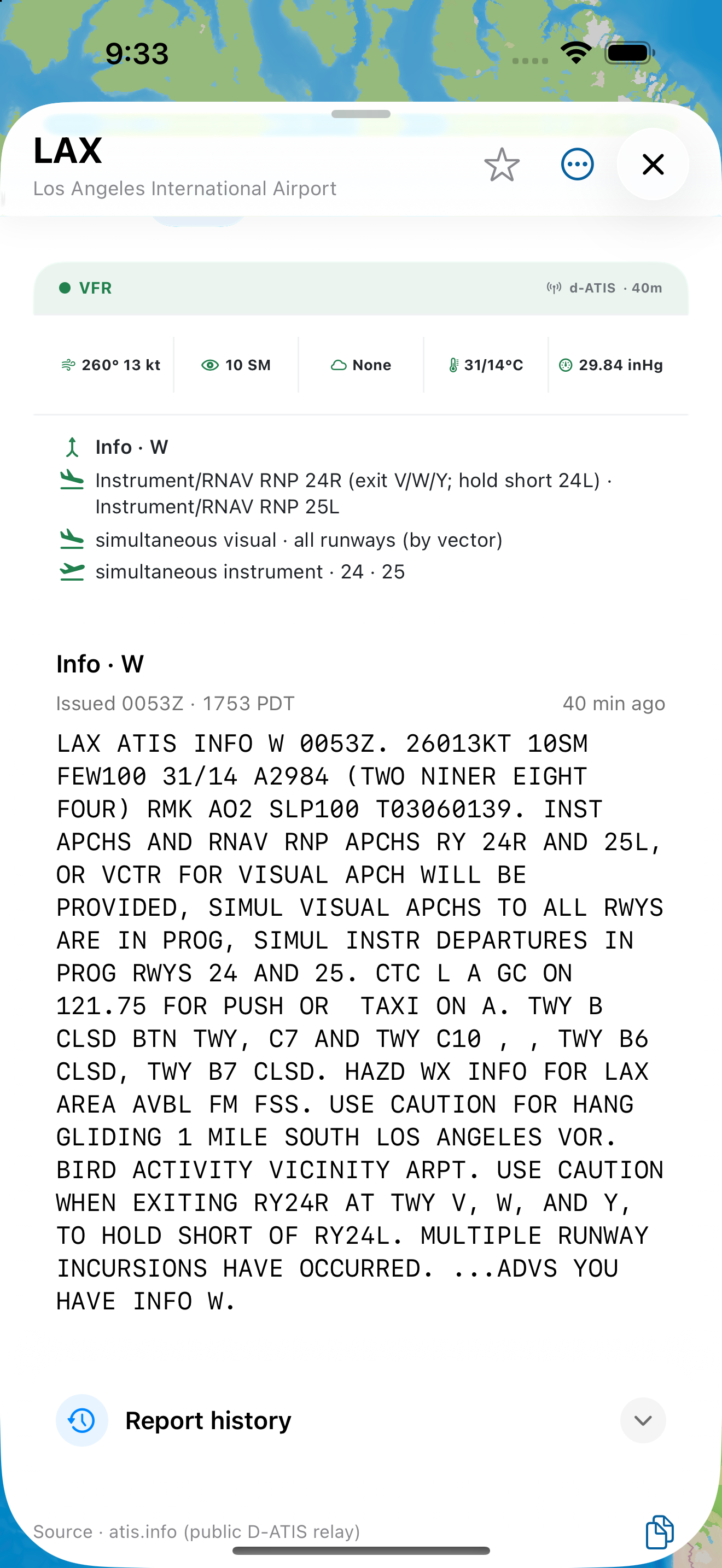
d-ATIS, with its original wording
The d-ATIS tab displays the complete message from the public relay, including information letter, source issue time, and operational notes when available.
How to use it- Open an airport and choose d-ATIS.
- Read the original broadcast and its issue time. If the airport has separate arrival and departure messages, keep the two roles distinct.
- Use the copy control at the lower-right for the full original text. Expand Report history only when you need older available messages.
Read the screen. The relay has airport-dependent coverage. d-ATIS is not a substitute METAR, and a stale or missing broadcast never silently switches to a different role.
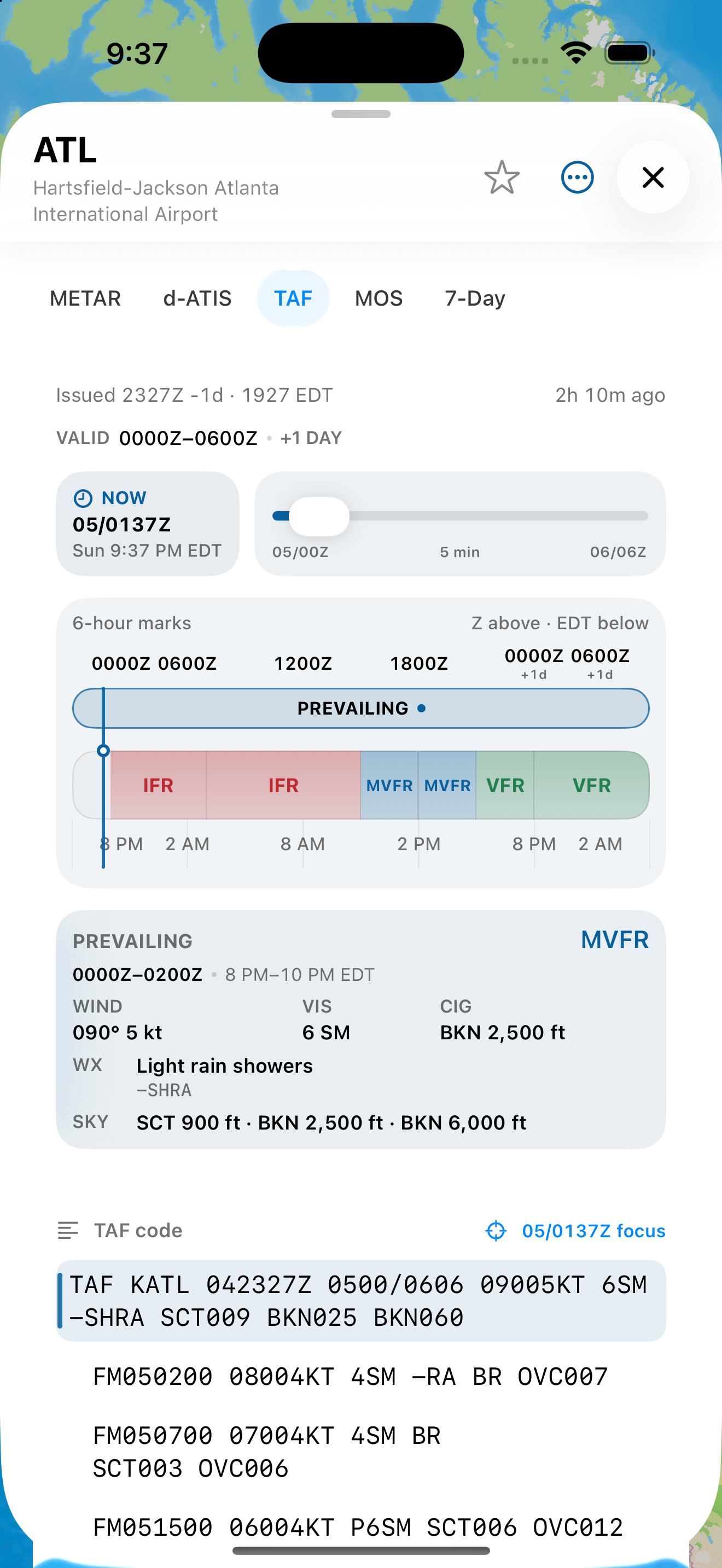
TAF, with change groups intact
The TAF tab pairs the complete terminal forecast text with a validity timeline. Prevailing weather and TEMPO, PROB, and BECMG periods remain separate.
How to use it- Open an airport and choose TAF.
- Read the validity period and issue time, then scan the timeline for upcoming prevailing and conditional periods.
- Tap the text to switch original and decoded views. Copy the original when a complete source-faithful message is needed.
Read the screen. A TAF is a forecast for its reporting airport and validity window. It does not fill a missing METAR and is not available at every field.
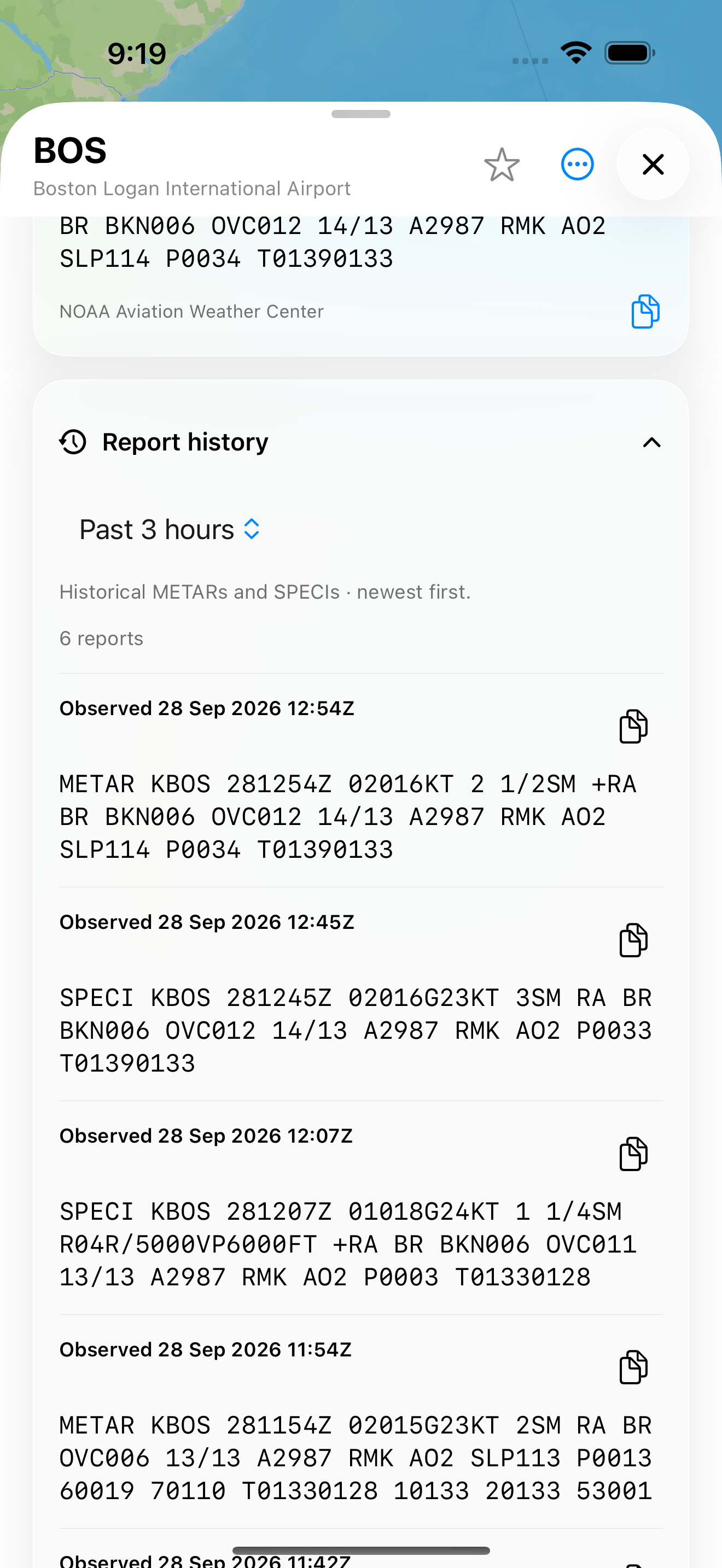
Decode and look back
METAR, TAF, and d-ATIS history starts collapsed and loads only when opened. Raw source text and source timestamps remain separate from current conditions.
How to use it- Open the relevant report tab and expand Report history.
- Choose an available lookback window. METAR supports published AWC lookback windows through 96 hours; d-ATIS history depends on relay coverage through 24 hours.
- For TAF, read the point-in-time archive label: a lookback sample is not a complete chronological amendment list.
- Tap METAR or TAF text to change original/decoded presentation; d-ATIS remains original only.
Read the screen. History is context, never a replacement for the current report. A source with no historical result has no fabricated history entry.
Forecasts
Terminal forecasts, model guidance, and location-based outlooks.
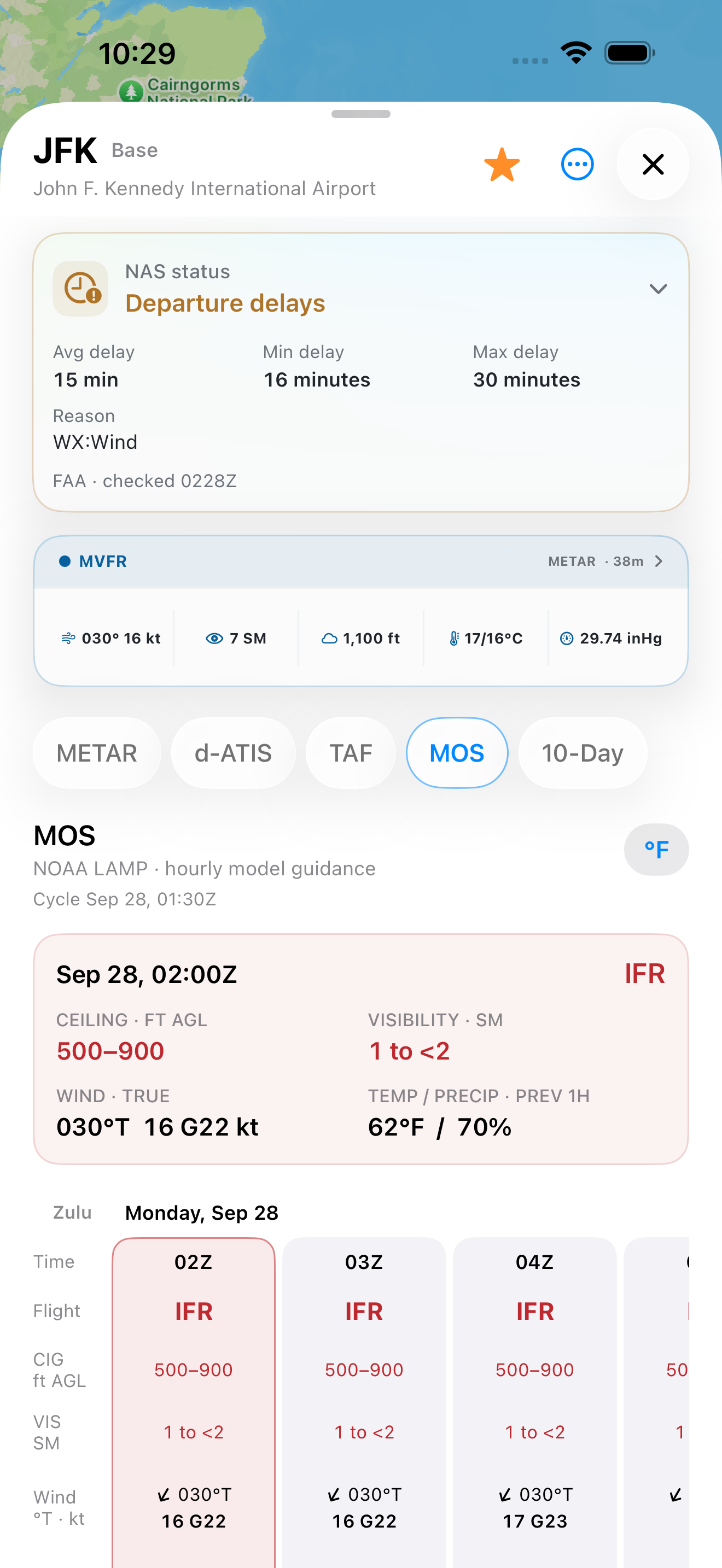
MOS hour by hour
The MOS tab reads NOAA LAMP guidance in Zulu-day columns: modeled category, ceiling and visibility ranges, true wind, temperature, and precipitation chance where the bulletin provides them.
How to use it- Open an airport and select MOS.
- Choose an hourly column and read its valid Zulu time before comparing wind, ceiling, visibility, and category.
- Use the F/C control for the displayed forecast temperature units when applicable.
Read the screen. MOS is model guidance rather than an observation or TAF. A station without a verified LAMP entry says unavailable; the app never manufactures a column.
7-Day and the hourly canvas
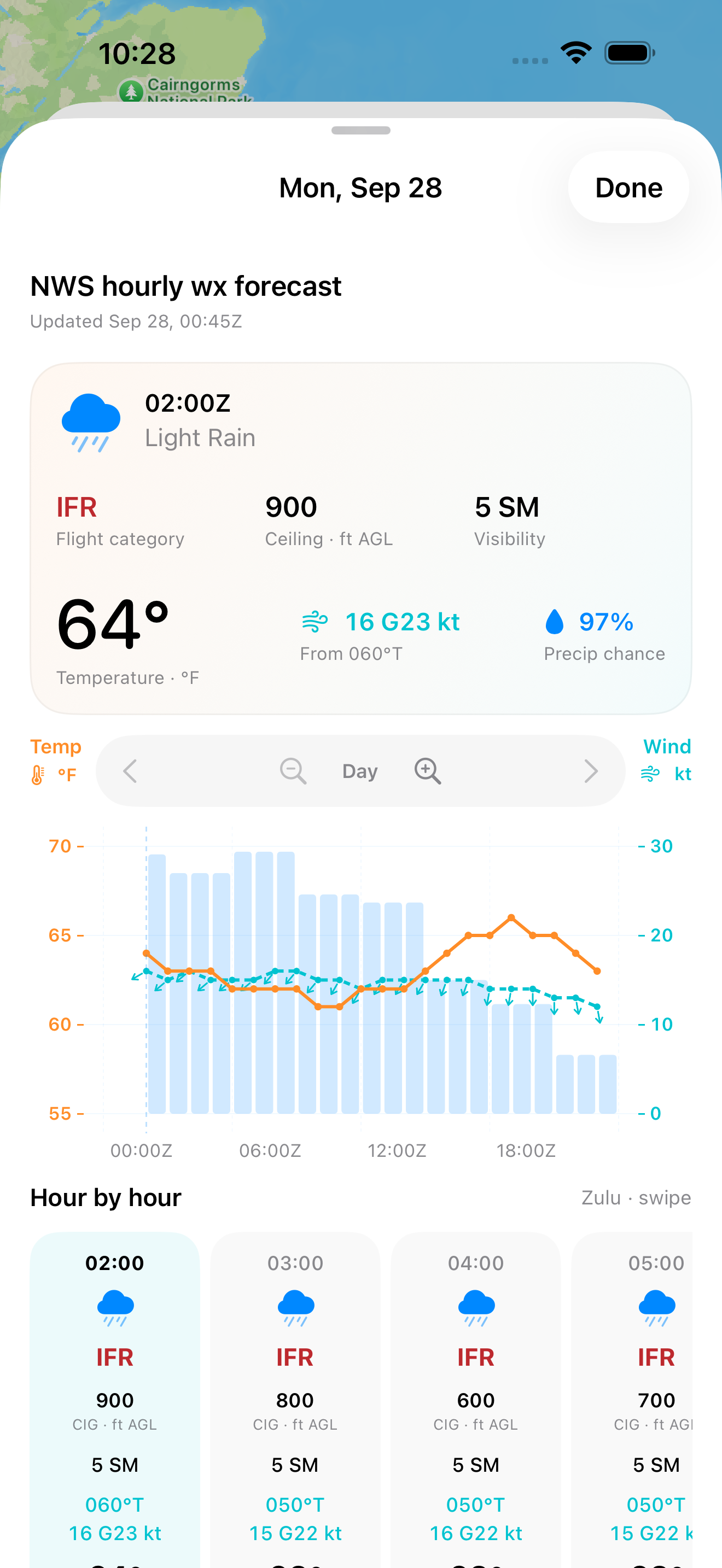
The U.S. 7-Day tab uses NOAA NBM dates and opens NWS hourly details. The selected-hour tile, combined graph, and hour cards expose the forecast source’s own time and available fields.
How to use it- Open an airport and select 7-Day. Choose a date with an available forecast.
- In day details, drag or tap the graph and hourly cards to inspect a specific Zulu hour.
- Read the two numeric axes—temperature and wind—and precipitation bars. Zoom the chart when a shorter interval helps.
- Look for separate NWS grid aviation fields such as ceiling and visibility; missing grid coverage remains unavailable.
Read the screen. The 7-Day forecast can exist for a small field without a METAR. Graph wind arrows show flow direction; the tap readout names the direction wind comes from.
International, where sourced
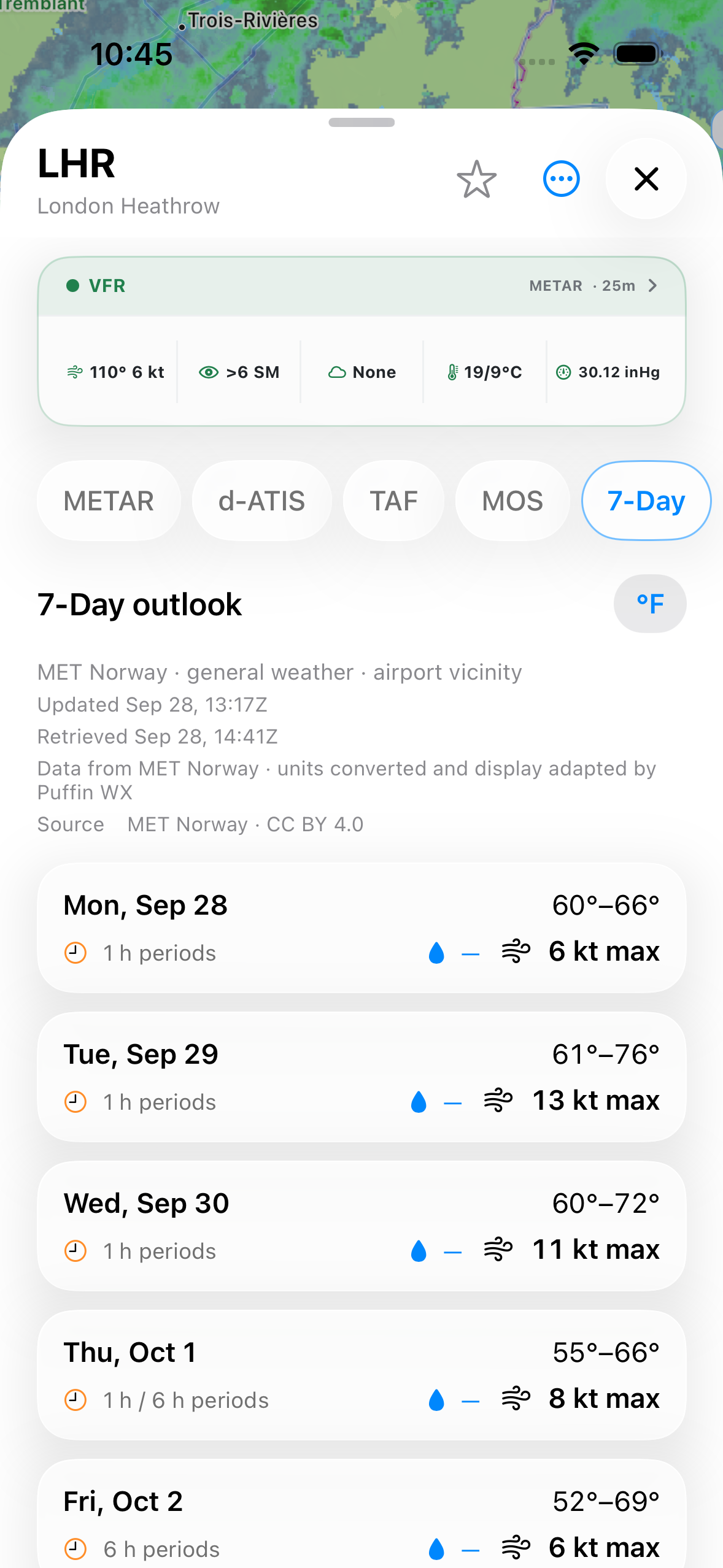
Selected international airports reuse the direct AWC METAR/TAF path. Their 7-Day page uses free MET Norway general outlooks when opened.
How to use it- Search one of the included international airports and open its page.
- Read METAR and TAF only when the airport has a verified reporting station and AWC has a report.
- Open 7-Day for available MET Norway periods, checking each forecast’s Zulu time and source label.
Read the screen. A general outlook is not an aviation terminal forecast, does not create a flight category, and does not imply worldwide radar, FAA NAS events, or d-ATIS coverage.
Routes
Published FAA references and your own filed-route sketch.
Compare routes, then leave them on the map
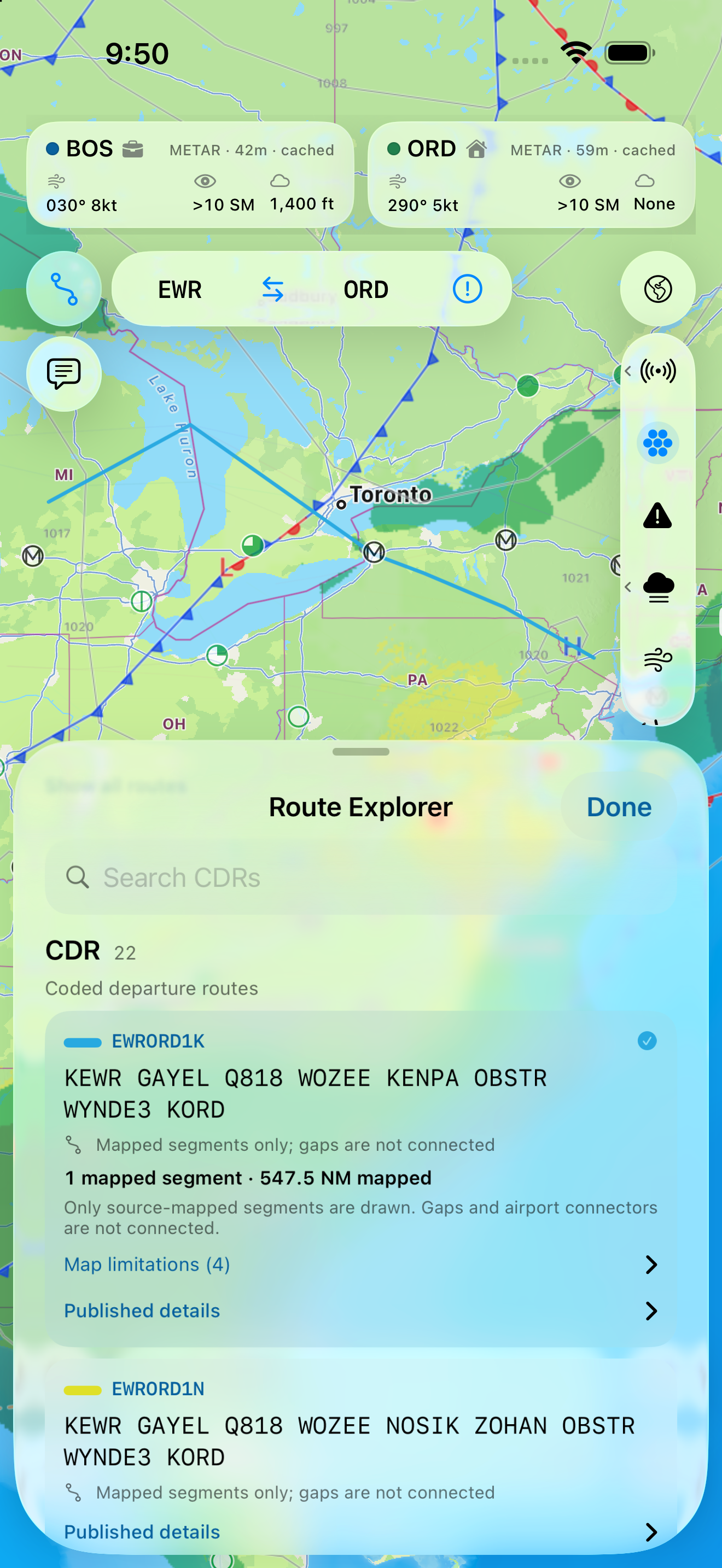
Route Explorer reads a bundled, cycle-pinned FAA reference catalog without an account or backend. Multiple published routes are drawn together; selecting one dims the others.
How to use it- Tap the route icon and enter origin and destination airports. Swap the pair with the center control when needed.
- The pull-up sheet offers CDR, Preferred, and Filed tabs. Read published route text and choose one to focus its map geometry.
- In Filed, paste a route string and choose Display on map. Dashed segments are a planning overview where procedures or points cannot be fully mapped.
- Close the sheet to inspect more of the map while routes remain. Tap the route icon again to hide them.
Read the screen. Use the information icon for the database cycle, validity, update state, source, and use limits. A published route is not activation, ATC acceptance, or a clearance; unmapped source gaps stay identifiable.
Discussions
The forecaster’s published narrative, placed on the map.
Read the forecaster’s words
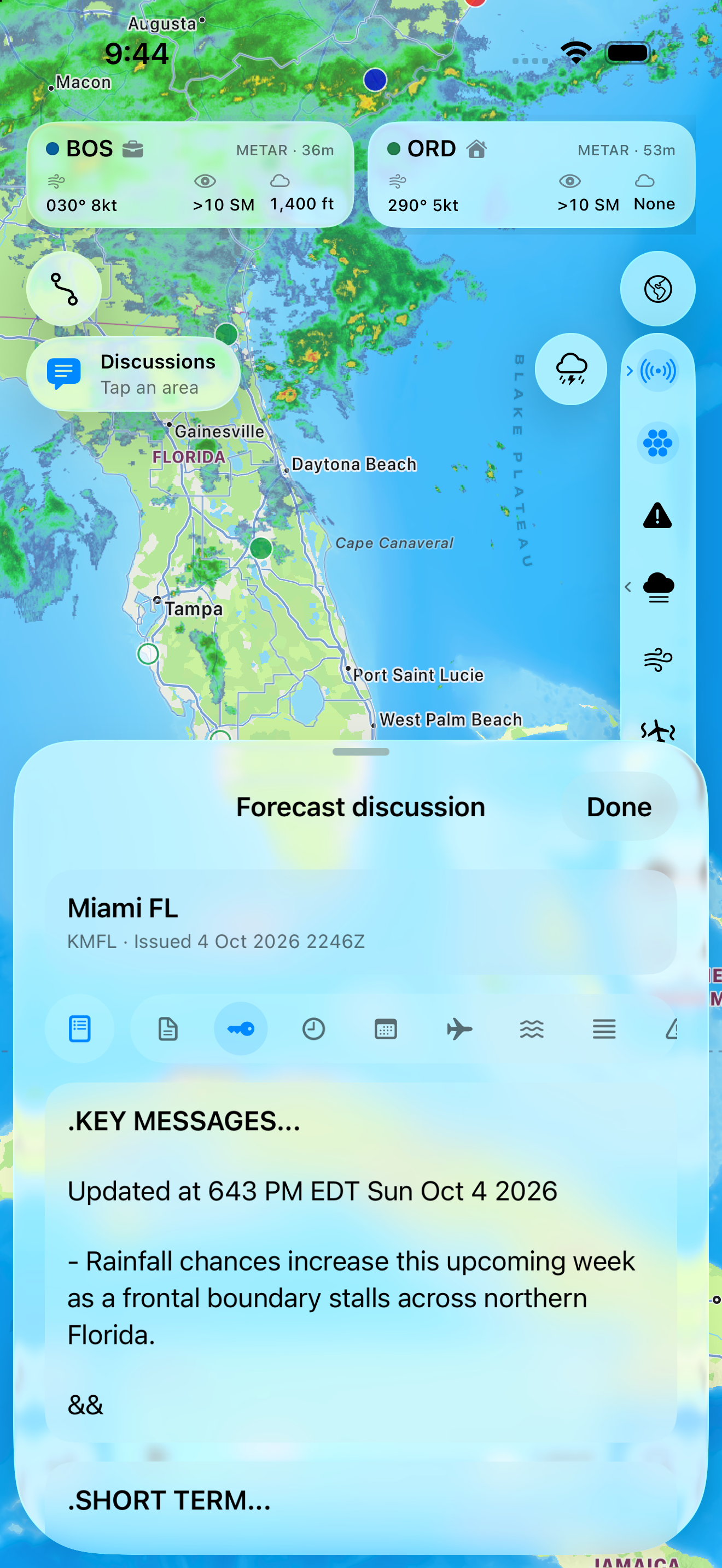
The discussion control places NWS forecast-office regions on the map and opens the office’s published text, including Key Messages and the Aviation section when supplied.
How to use it- Tap the discussion icon and choose an office area on the map.
- Read the issuing office and issue time in the pull-up sheet.
- Use Sections or Aviation to move directly to the part you need; close the sheet to return to the map.
Read the screen. Discussion text belongs to the selected office and issue time. The Forecaster Says widget shows that office’s Key Messages and links back to the full discussion.
iPhone widgets
An airport glance on Home Screen and Lock Screen.
Your airport on the Home Screen
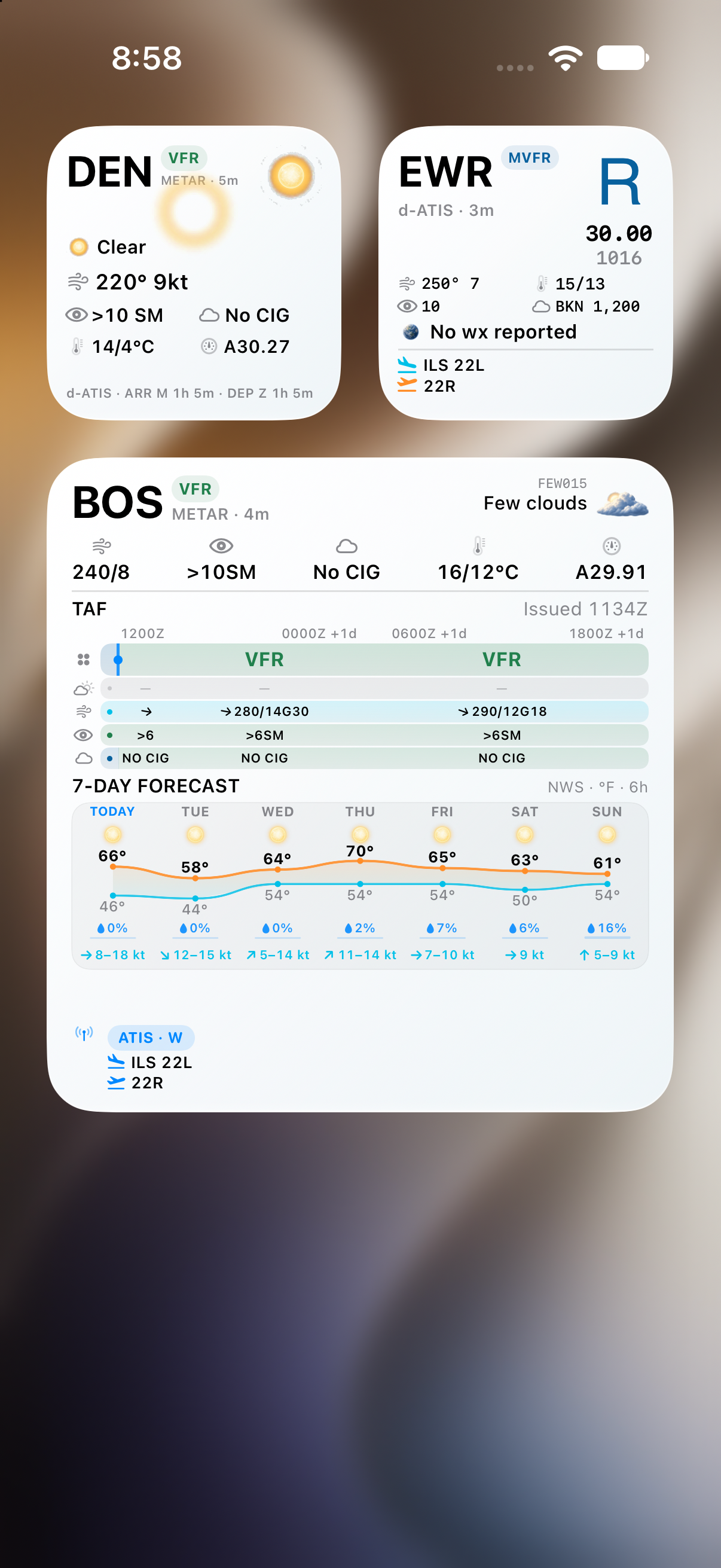
The widget collection spans current conditions, multi-airport views, TAF outlooks, d-ATIS, discussions, and quick glances. Each widget instance can follow a fixed airport or Current Location.
How to use it- On the iPhone Home Screen, enter edit mode and add Puffin WX from the system widget gallery.
- Choose a widget kind and size. Edit that instance’s Airport field; the native picker can search code, name, city, or state.
- Choose Current Location only if you want a reporting airport resolved at WidgetKit refresh time. Otherwise select a fixed airport.
- Tap a widget to open its linked airport or full discussion in Puffin WX.
Read the screen. Widgets show source age and unavailable states; a forecast never fills absent METAR metrics. A fixed widget airport remains selected even if you remove it from map favorites. Apple schedules actual refreshes.
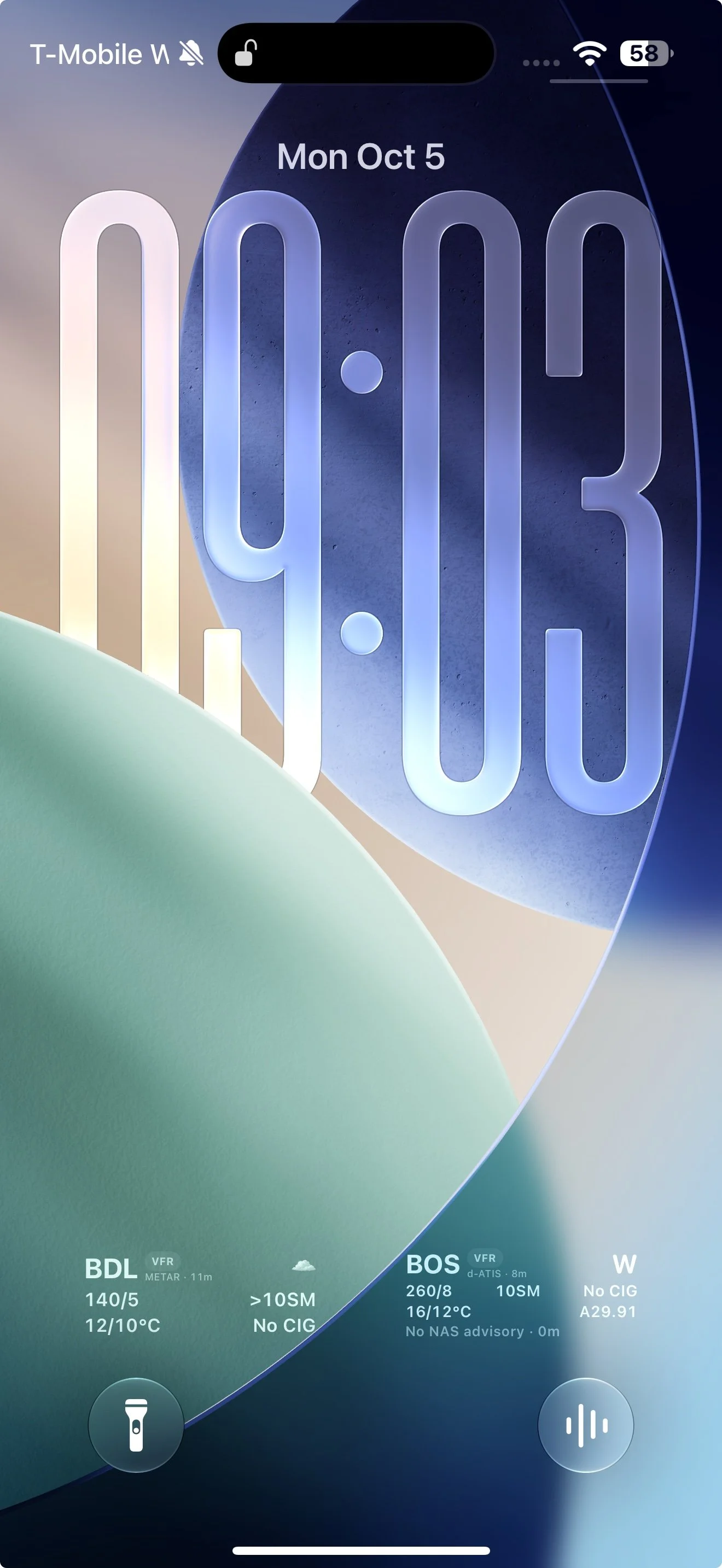
A fast Lock Screen glance
The rectangular weather and d-ATIS & NAS presentations keep the airport code, source category or message age, and compact operational metrics legible in a small space.
How to use it- Customize the Lock Screen and choose a compatible Puffin WX rectangular widget.
- Edit Airport with the native searchable picker or choose Current Location.
- For d-ATIS & NAS, select Arrival or Departure only if the fixed airport currently has distinct broadcasts; otherwise the applicable available report is used.
- Open Puffin WX for the complete source report and details.
Read the screen. This is a captured Lock Screen moment, not a live observation. The enlarged image retains the full screen; the preview focuses on the two Puffin WX widgets.
Apple Watch
Independent airport choices in the Watch app and complications.
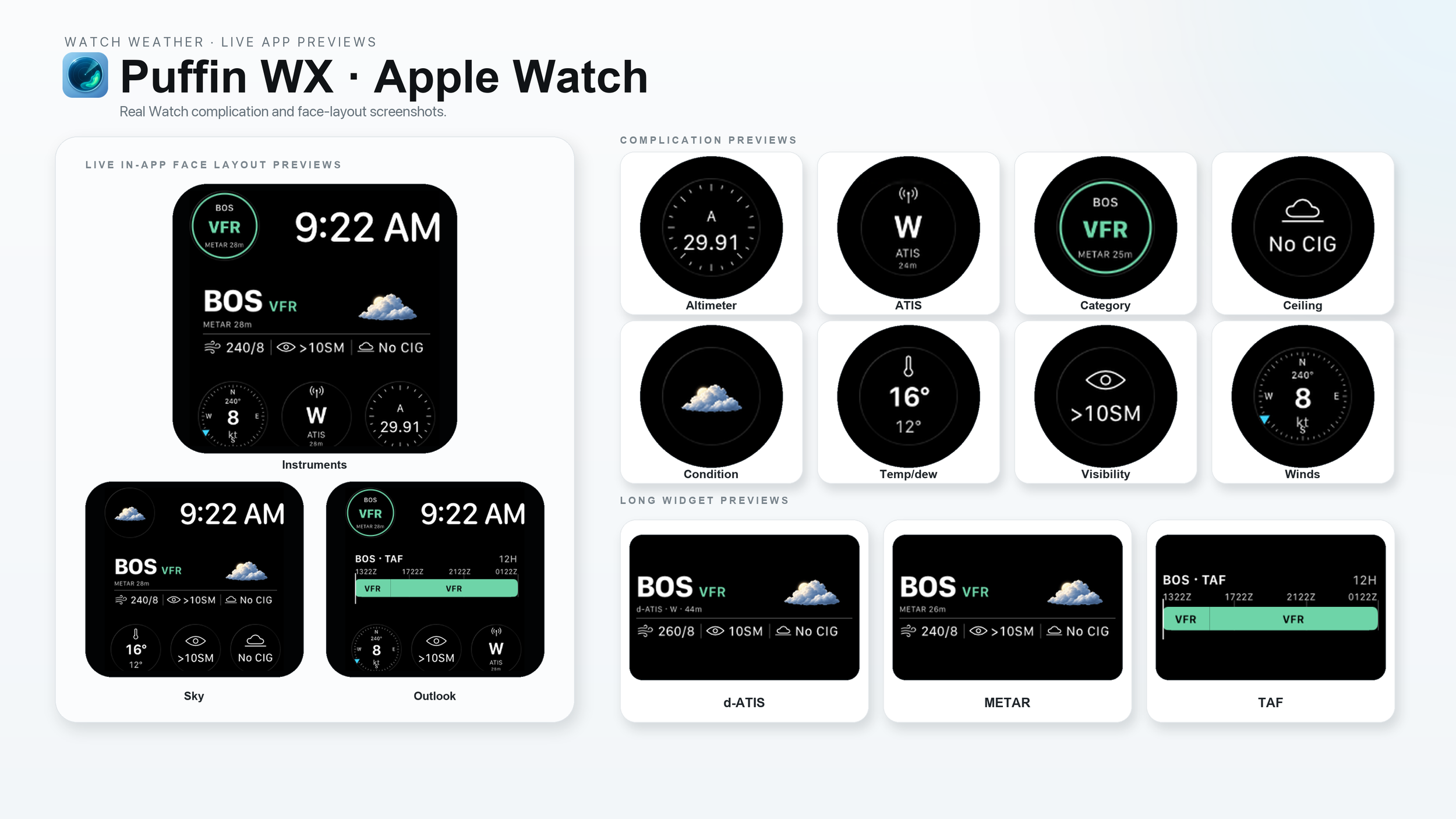
Weather on Apple Watch
The Watch app shows synced favorites, catalog search, METAR details, refresh, and a widget gallery. Configurable circular instruments and longer summaries fit compatible complication and Smart Stack slots.
How to use it- Open Puffin WX on Apple Watch for a favorite or search another airport.
- To add a complication or Smart Stack widget, edit a compatible slot and choose Puffin WX.
- Open Edit Widget and select an airport or Current Location for that instance. For d-ATIS, choose the available broadcast role when needed.
- Read the source age. If Watch connectivity or a report is unavailable, use the displayed unavailable state and retry from the Watch app.
Read the screen. The pictured collage is a user-supplied preview of Watch layouts and complications, not proof of physical-device placement. Build 9 packaged 11 Watch widget kinds; a watchOS 27 simulator rendered a selected airport complication, while physical-device placement and native Watch search remain unverified.
Data & trust
What the app shows when a source is missing, stale, or out of scope.
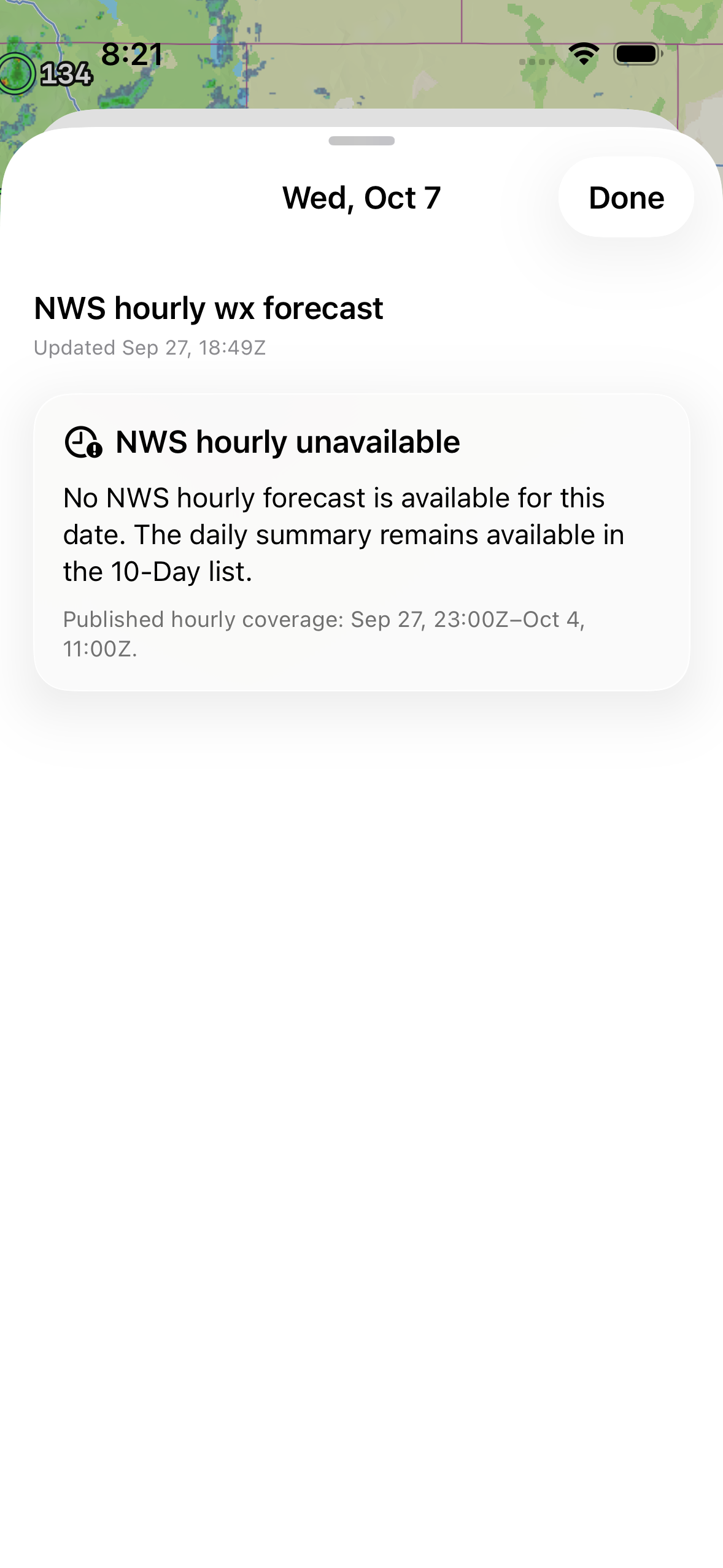
Trust the timestamps and the blanks
Every surface should make it possible to tell the observation, issue or valid time apart from app retrieval time. “Unavailable” is a real result, not a zero or a forecast substituted into an observation.
How to use it- Before using a value, check its product label and source age or valid time.
- If a field is unavailable, open that product’s details for its source and coverage explanation.
- At BOS, a selected NWS hourly date outside the published coverage window says unavailable while the daily summary remains available. A missing hourly period is never filled with invented values.
- For FAA route data, open the status icon and check cycle validity before comparing rows.
Read the screen. The app is a reference aid. Confirm operational weather, procedures, restrictions, and clearances from current authoritative channels before flight.
Weather, in every form.
Explore the complete light-background library of 42 weather conditions, report codes, and native motion previews on its own page.
Open the weather conditions gallery ↗Nine weather families. Different evidence.
Radar
Observed imageryMRMS reflectivity frames and playback.
Flight rules
Observed stationsLatest station categories on the map.
SIGMETs
AdvisoryPublished significant-weather areas.
AIRMETs / PIREPs
Advisory / reportNested hazards and individual pilot reports.
Winds
Graphical forecastSpeed and vectors by level and lead.
Turbulence
Graphical forecastGTG EDR palette by aircraft weight.
Clouds
Graphical forecastCoverage, bases, or tops.
Precipitation
Graphical forecastSurface weather type and category.
Surface analysis
Synoptic forecastFronts, pressure, and valid time.
Know what each number means.
Puffin WX reads public sources directly. A source timestamp differs from the time the app fetched it; one product never fills a missing field in another.
Aviation Weather Center
METAR, TAF, advisories, GFA imagery and winds/temperatures.
AWC data API ↗NOAA MRMS
Radar mosaics with advertised source-frame times.
MRMS product viewer ↗Iowa Environmental Mesonet
Public NEXRAD storm-attribute table for current cell markers.
IEM storm attributes ↗NWS / NOAA
U.S. hourly and grid forecasts, NBM extended guidance, LAMP MOS.
NWS API ↗FAA
Airport catalog, NAS events, CDR/preferred/navigation reference cycles.
NASR subscription ↗Weather Prediction Center
Surface analyses and short-range fronts/pressure forecasts.
WPC surface charts ↗MET Norway
General point outlook for included international airports.
Locationforecast ↗METAR describes a reporting station at its observation time.
TAF, MOS, NWS/NBM, and GFA use their own issue and valid times.
SIGMETs, G-AIRMETs, and PIREPs retain their published scope.
FAA routes and NAS status have separate applicability and currency.
When a station or field has no verified source, the app says unavailable. That does not mean clear, calm, or VFR. Confirm operational weather, procedures, restrictions, and clearances from current authoritative channels before flight.
 Puffin WX · Field guidePrepared October 5, 2026 · © Aukridge LLC